Remote Access
Change Network
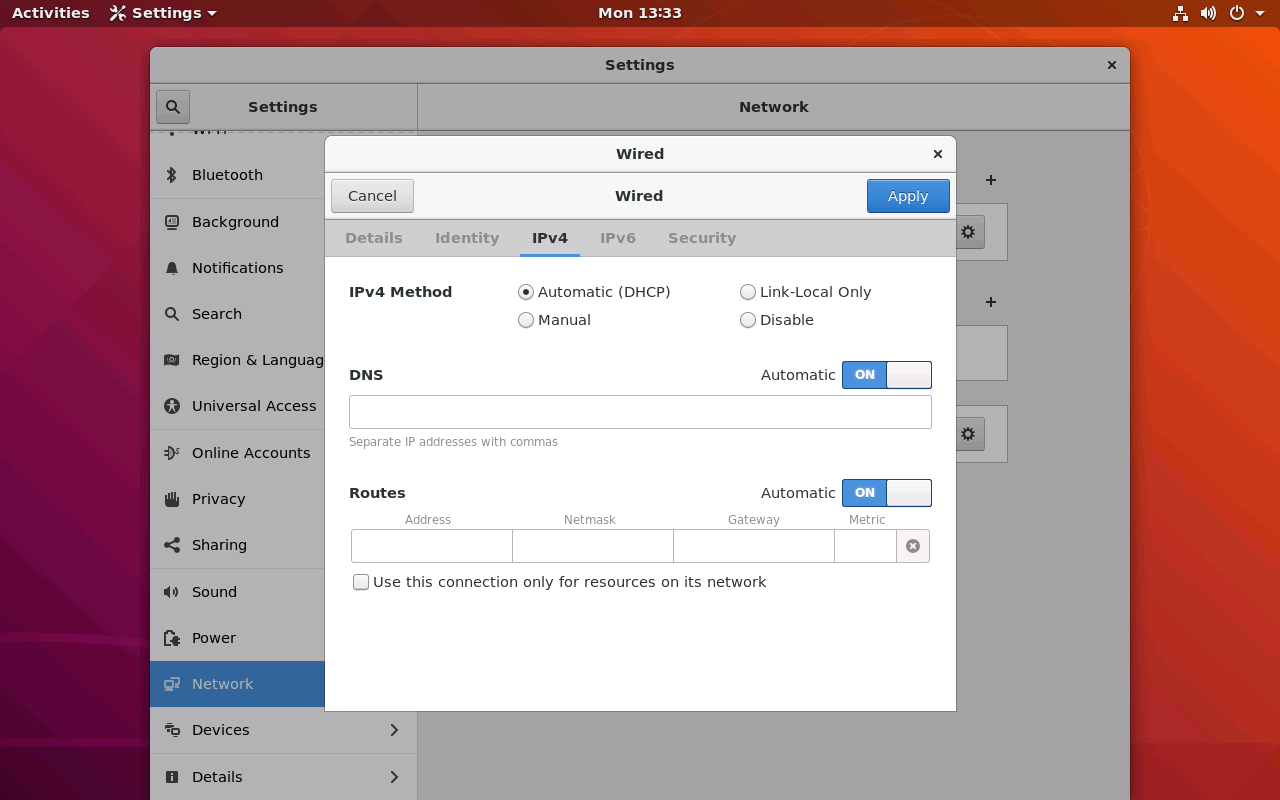
The microcontroller devices may be set to use static IPs to facilitate communications between them. If it is required for that device to communicate with the Internet on a router that is not the Starlink router, you can change the network settings to use DHCP:
- Log into the microcontroller device after connecting a monitor and keyboard + mouse
- Click on the top right network icon and click either the gear icon or Settings
- Navigate to Network settings
- Go to IPv4 and check the Automatic (DHCP) box
- Restart the device
Remote Desktop on Devices
Some devices will be set up with Remote Desktop Protocol (RDP) software to allow easy remote access to the device without using SSH.
Important considerations:
- You must log out each time (don’t just close the window). If you do not properly log out, when you try to log in next time it will just give a frozen screen as it thinks you are still logged in. If this happens you will need to SSH in and manually log out the user, or simply run
sudo rebootto restart the system.- Be careful to not power off. If the box is powered off, there is no way to power it back on without unplugging and re-plugging the power or tripping the power to the box (unless you have a smart power switch installed).
- Only one user at a time.
Steps to Connect via RDP
Install Tailscale on your computer
Ask for a Tailscale invite link to the device you want to access
Click on the invite link and create an account
Press the Windows key and type “rdp”
Click on Remote Desktop Connection
Find the IP address or domain name:
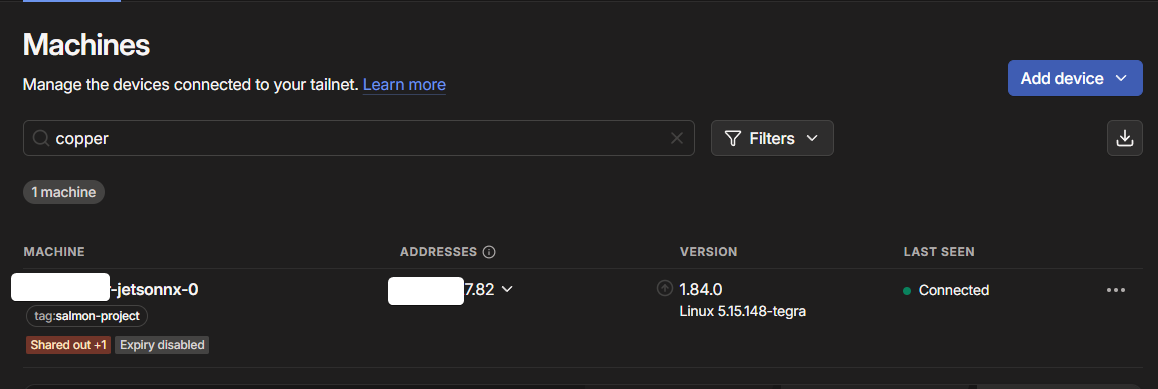
Option A: Go to the Tailscale console and look at the name under “MACHINE” or the IP address under “ADDRESSES”
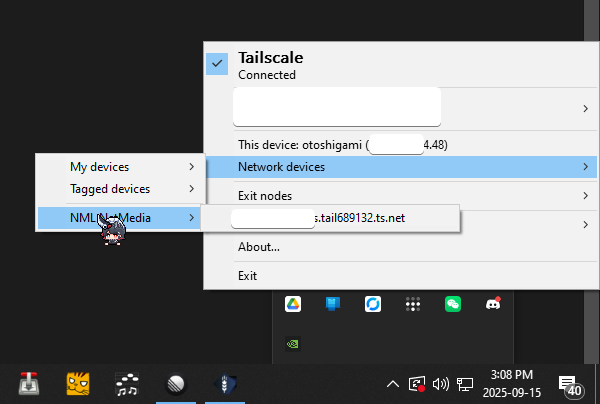
Option B: Right-click the Tailscale icon in your taskbar (the icon with 3 dots in a T) → Network devices → Click on the device to automatically copy the IP to clipboard
Enter the IP address or domain name and the proper username:
- If it’s from OceanAID:
oceanaid - Otherwise:
netlabmedia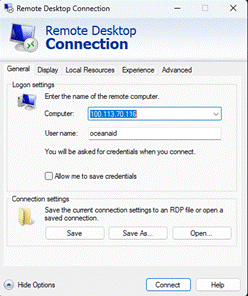
- If it’s from OceanAID:
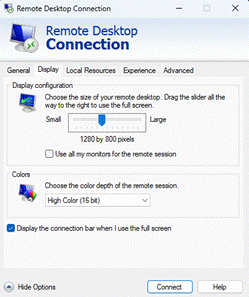
Configure the display settings: reduce the screen size and the pixel depth so the GUI is not as laggy
Once connected you will arrive at the xrdp login page — enter the password (device default pass is
oceanaid)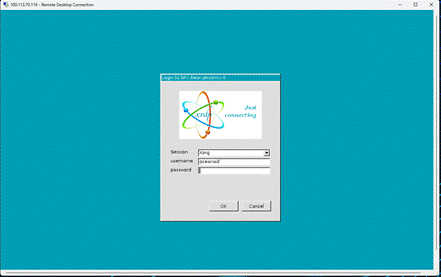
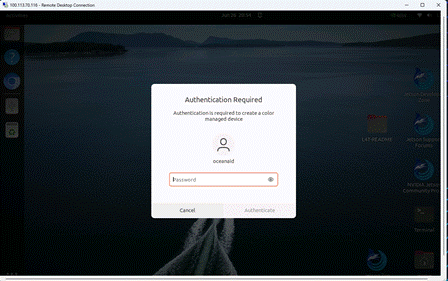
It should take a few seconds and then you should arrive on the home page. You can click cancel, or reenter the password a couple times to authenticate access.
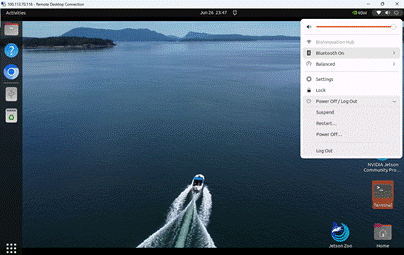
Always log out when you are done.