Webapp
In this part of the user guide we focus on the functionalities that are shared between the RGB and sonar web app module for the user. Note that the sonar data only contains the intensity of the return signal and consequently a lot less can be extracted from it, e.g. no fish identification on colour. The examples below are
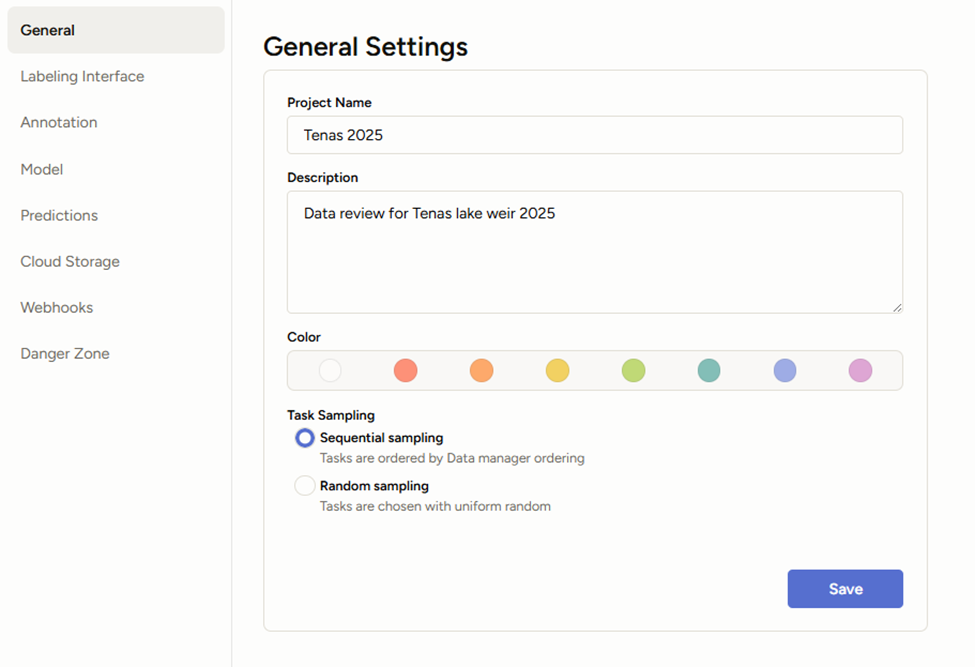
To set up a new project click the blue “create” button at the top right of your screen. Name the project and description of the project.
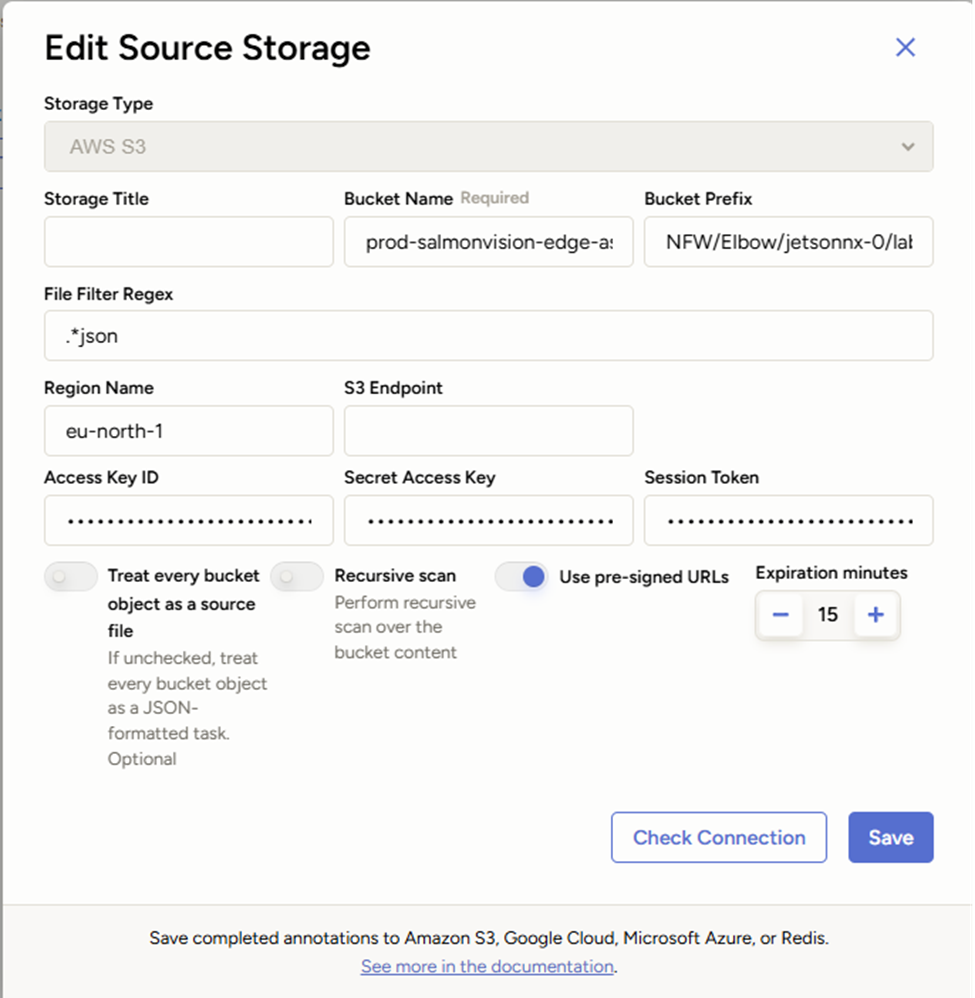
Next, configure your cloud storage. For new projects click “Add Source Storage” and you will be taken to the “Edit Source Storage” window. The Salmon Vision team will provide you with the bucket name and bucket prefix for your project. In the field “File Filter Regex” enter .*json, in the “Region Name” field enter, eu-north-1. The Access Key ID, Secret Access Key, and Session token will populate automatically. If these fields fail to populate, please contact the Salmon Vision team. Once these fields are filled in correctly, click “Check Connection” to confirm the cloud storage is correctly specified. Having confirmed that cloud storage is connected, click save to complete setup of the Source Storage.
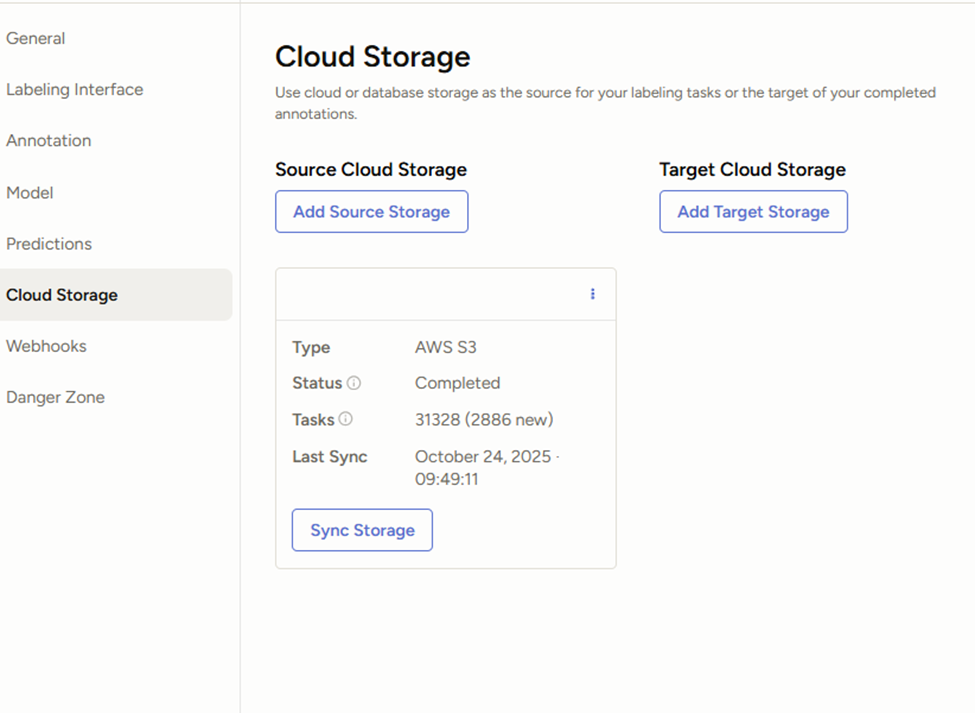
Prior to syncing storage (ingesting motion videos and AI counting results from cloud storage), you will need to specify the upstream direction (e.g. left v. right) for both sonar and video projects, and the length bins (e.g. <45cm, 45-65 cm, >65cm) of interest for your sonar project as well. The Salmon Vision team can help you configure these settings for your project. Once you have confirmation that they are set up correctly, a user on your team with “staff” status, can click the “Synch Storage” button to ingest available data from cloud storage for review and annotation in the web app. If a large number of files are available in cloud storage this may take some time, even hours, and the web app will often time out. Don’t press synch storage twice, just wait, and if you refresh the main project page you will see that new videos are continuing to upload.
***Note that to create new projects, an account must have “staff” status. This authorization level allows users to create and delete projects, configure storage settings, and control other aspects of projects rather than just reviewing data. Each organization will be provided with one staff user during project set up, if other accounts need staff status, please reach out to the Salmon Vision team for assistance.